Case Detail
The case detail page is the primary workspace for internal staff managing a surrogacy case. It shows everything about a single journey — the parties involved, financial status, documents, and communications.
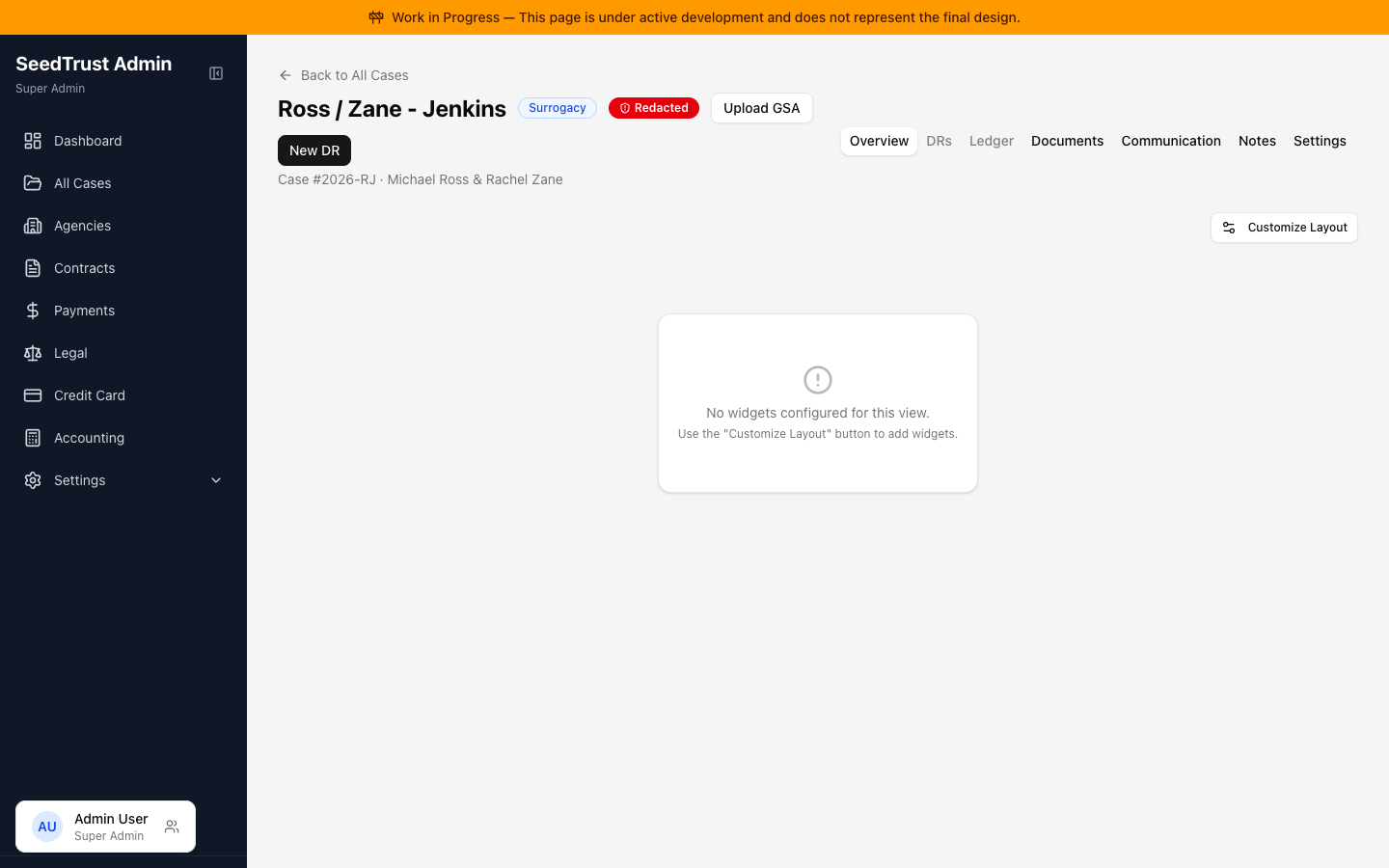
Header
Section titled “Header”The case header displays:
- Case name (IP / GC format) with case type badge (Surrogacy or Egg Donation)
- Redaction status — indicates if personally identifiable info is redacted for certain roles
- Upload GSA button — launches the GSA Upload Wizard
- New DR button — opens the disbursement request creation dialog
| Tab | Purpose |
|---|---|
| Overview | Customizable widget dashboard for the case |
| DRs | Disbursement requests for this case |
| Ledger | Financial transactions and balance |
| Documents | Uploaded files and contracts |
| Communication | Messages and correspondence |
| Notes | Internal notes from staff |
| Settings | Case configuration, including disbursement overrides |
Widget System
Section titled “Widget System”The Overview tab uses a customizable widget grid. Staff can arrange widgets to build their preferred case overview layout.
How it works:
- Click “Customize Layout” to enter edit mode
- A sidebar appears showing all available widgets, organized by category and searchable
- Drag widgets onto the grid to add them
- Drag existing widgets to rearrange
- Widgets come in three sizes: small (1 column), medium (2 columns), large (3 columns)
- Click “Reset to Default” to restore the original layout
Widget categories: Financial, Workflow, Context, History, Communication, Reports
Payment Calendar Widget
Section titled “Payment Calendar Widget”A key widget showing all scheduled payments from the parsed GSA compensation schedule.
Three views available:
- Timeline — vertical timeline with payment dots, status colors, and a prominent “next payment” card at the top showing days until the next disbursement
- Month Calendar — traditional calendar grid with payment indicators per day, month navigation
- Table — sortable list with date, description, amount, status, and trigger columns
At a glance:
- Summary stats showing Paid / Scheduled / Pending totals with dollar amounts
- Category filter tabs: All, Base, Monthly, Insurance, Medical
- Color coding: green (paid), blue (scheduled), amber (pending milestone)
Create Disbursement Request
Section titled “Create Disbursement Request”A multi-step dialog for admin staff to create new DRs.
Steps:
- Payee — choose who receives the money: Surrogate, Agency, or Other (with name field)
- Dates — when the expense applies, plus an optional “wait to approve until” date
- Expenses — add line items with expense category (searchable dropdown), amount, description, and optional receipt attachments (drag-and-drop)
Multiple expenses can be added to a single DR, with a running total displayed.
Case Overrides
Section titled “Case Overrides”Accessible from the Settings tab → Disbursements section.
After a GSA contract is uploaded, this panel shows every disbursement type for the case with the amount parsed from the contract. Staff can:
- See the GSA upload status — green “GSA Uploaded” badge or outline “Awaiting GSA” badge
- Edit amounts inline — hover over any item to reveal an edit button
- See what was changed — edited items show an amber “Edited” badge and a tooltip with the original GSA value
- Revert edits — restore the original GSA amount for any manually changed item
- Search and filter — find specific disbursement types by name
Items are grouped into collapsible categories with counts. Each item shows one of three status indicators:
- Green check — amount from GSA contract (untouched)
- Amber pencil — manually edited by staff
- Gray dash — not found in the GSA contract
Visible to: Contracts Team, Super Admin